
This article corresponds to QR Code KIT's legacy app. For more information, click here.
Log in to your account, or register here if you do not have one, and follow these steps:
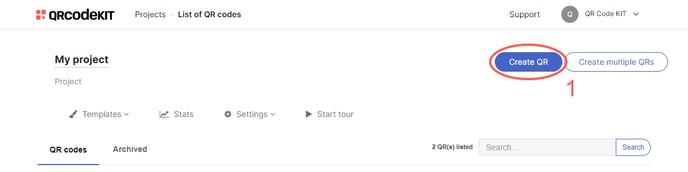
1) Click Create QR
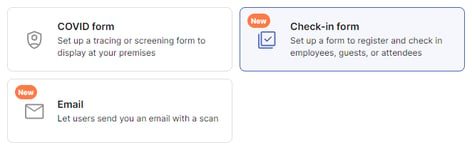
2) Select Check-in form
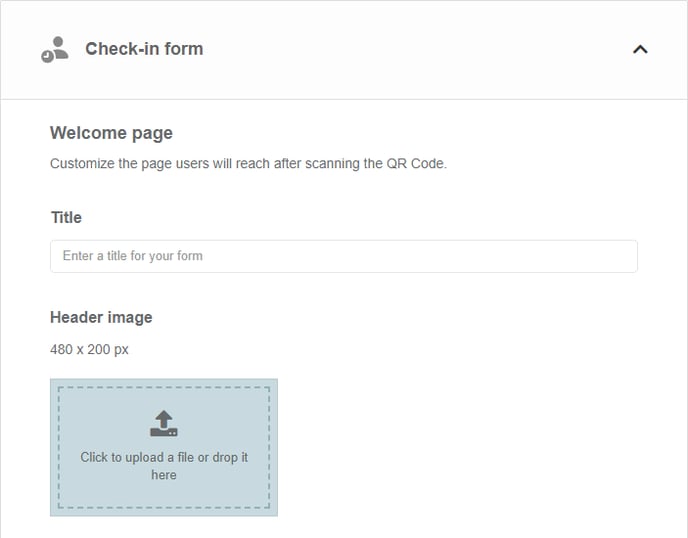
3) Enter a Title. You can also upload a Header image (JPG or PNG)
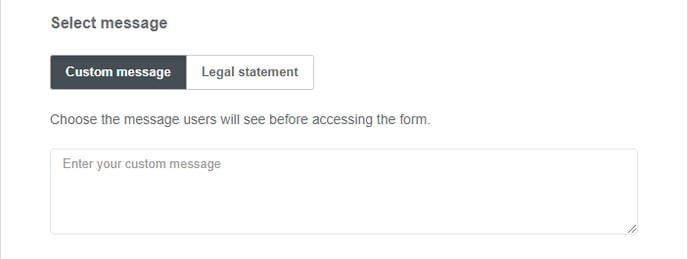
4) Select Custom message or Legal statement as an opening to the form. If Legal statement is selected, users will have the option to accept or reject the form
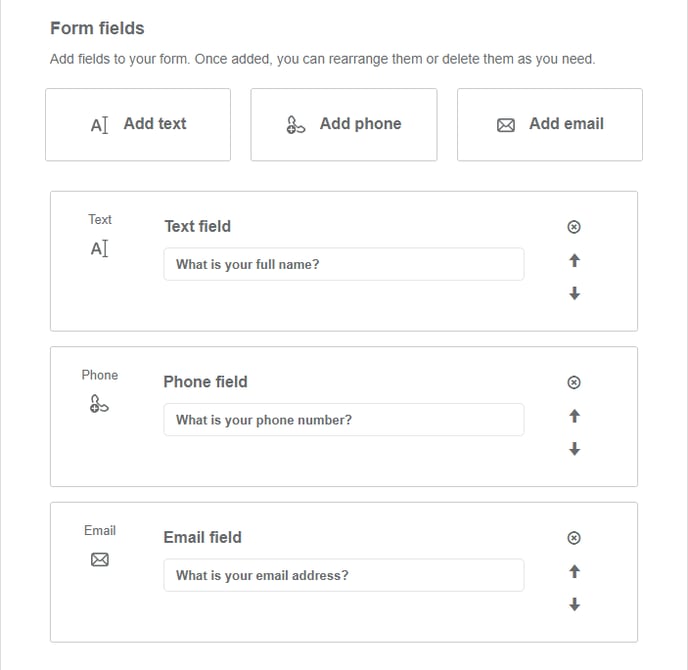
5) Add one or more Form fields and enter the text that you require
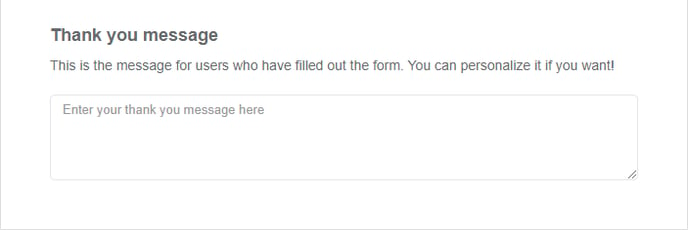
6) Enter a Thank you message for users who have filled out the form
7) Click Save to apply changes or Save and download to download the QR Code
Done!
If you want to know how to view the responses of a Check-in form QR Code, check the following article:
If you want to know how to customize the QR Code, its page or how to download it, check the following articles: